
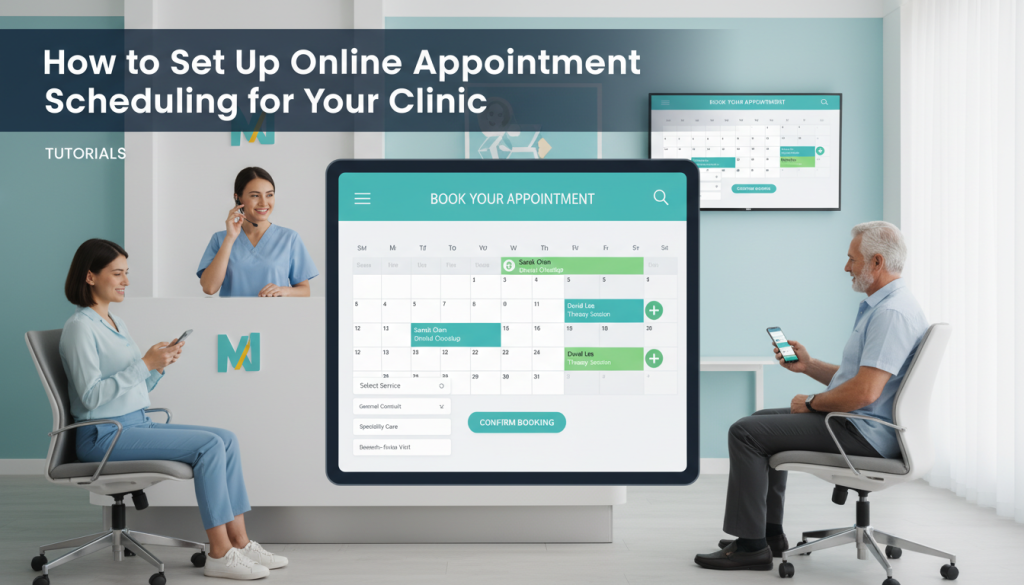
Medical clinics, dental offices, and therapy practices all share one challenge: managing a steady flow of patient appointments without losing time to phone tag and scheduling conflicts. If your clinic runs on WordPress, adding online appointment scheduling is simpler than you might think.
The Cost of Manual Scheduling
Front desk staff spend an average of 2-3 hours per day on the phone managing appointments. That’s time that could be spent on patient care, billing, or other critical tasks. Online scheduling reduces this workload dramatically while giving patients the convenience they expect from modern healthcare.
Key Features Clinics Need
Not every booking plugin is suitable for healthcare. Here’s what to look for:
- GDPR-compliant data handling — Patient data must stay on your server, not third-party clouds
- Custom intake forms — Collect insurance info, symptoms, or medical history before the visit
- Configurable appointment durations — 15-minute follow-ups vs. 60-minute initial consultations
- Email confirmations with calendar files — ICS attachments ensure appointments appear in patients’ calendars
- Buffer time between appointments — Allow cleaning or preparation time between patients
How to Set Up Online Scheduling for Your Clinic
Step 1: Install a WordPress Booking Plugin
WP Booking Pro installs like any WordPress plugin. Upload the zip file or install from the plugin repository, then activate it. The setup wizard guides you through initial configuration.
Step 2: Configure Your Schedule
Set your clinic’s operating hours, working days, and appointment slot durations. If you have multiple practitioners, create separate calendars for each one using the multiple calendars feature.
Step 3: Create Custom Intake Fields
Add fields for the information you need before each appointment. WP Booking Pro supports text fields, dropdowns, checkboxes, file uploads, and more. Required fields ensure patients provide essential information upfront.
Step 4: Set Up Notifications
Configure email notifications for booking confirmations, approvals, and reminders. Each notification includes an ICS calendar attachment so appointments automatically appear in the patient’s calendar app.
Step 5: Add the Booking Calendar to Your Website
Use the shortcode on any page. You can specify a service name or calendar to show the right booking flow for each department or practitioner.
Why WP Booking Pro Works for Clinics
WP Booking Pro keeps all data on your WordPress server — no external APIs storing patient information. Combined with custom fields, email notifications with ICS files, and flexible scheduling options, it provides everything a small to mid-size clinic needs for online appointment management.
The free plan includes unlimited bookings and custom fields. For clinics needing Google Calendar sync or payment collection, Pro plans start at $49.99/year.
Explore WP Booking Pro
